

Snap Compare - App Embed
Click "Configure" to access the app embed in the Shopify theme editor.
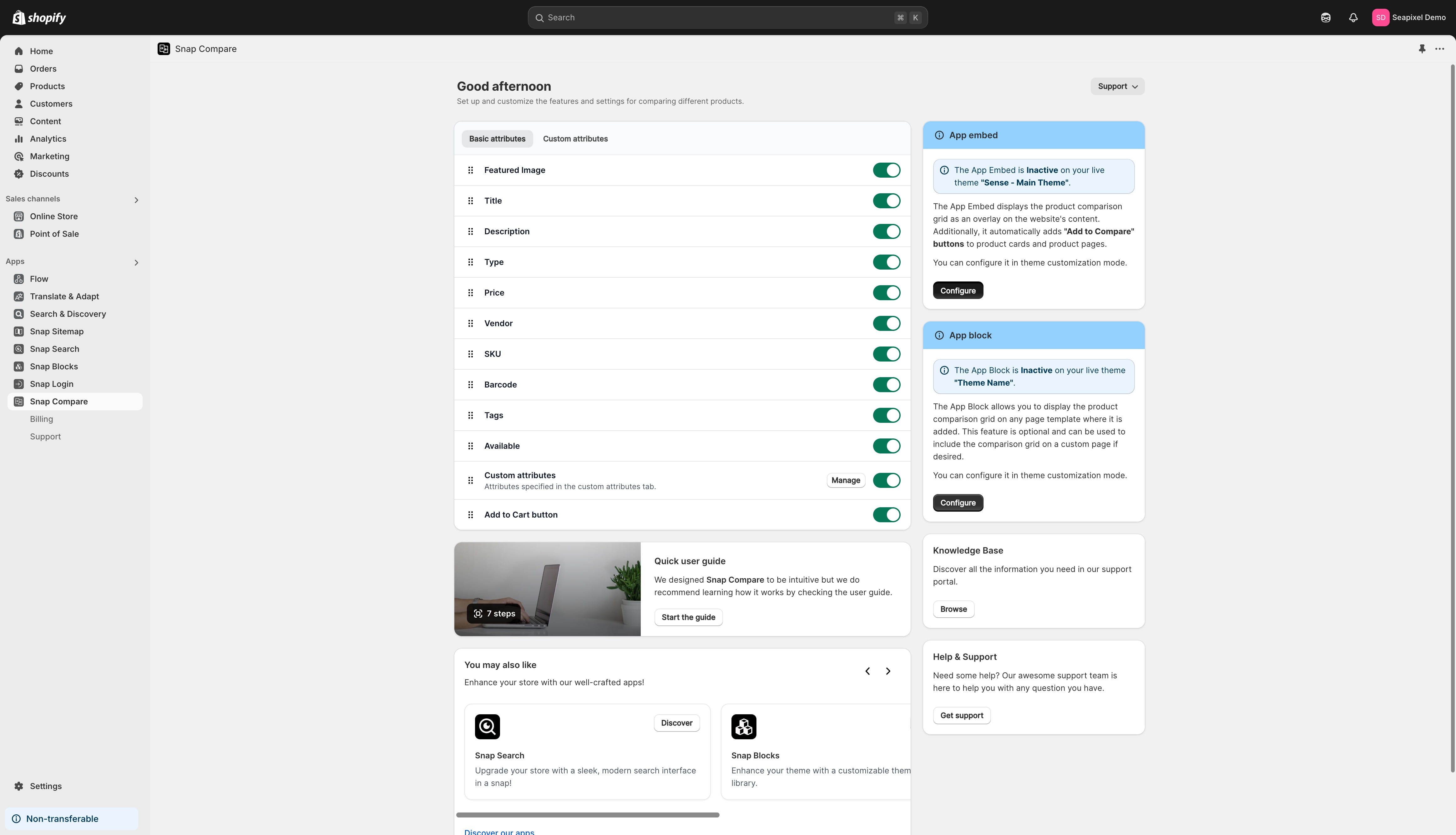

The Snap Compare app embed will be enabled, allowing you to preview all changes without saving.
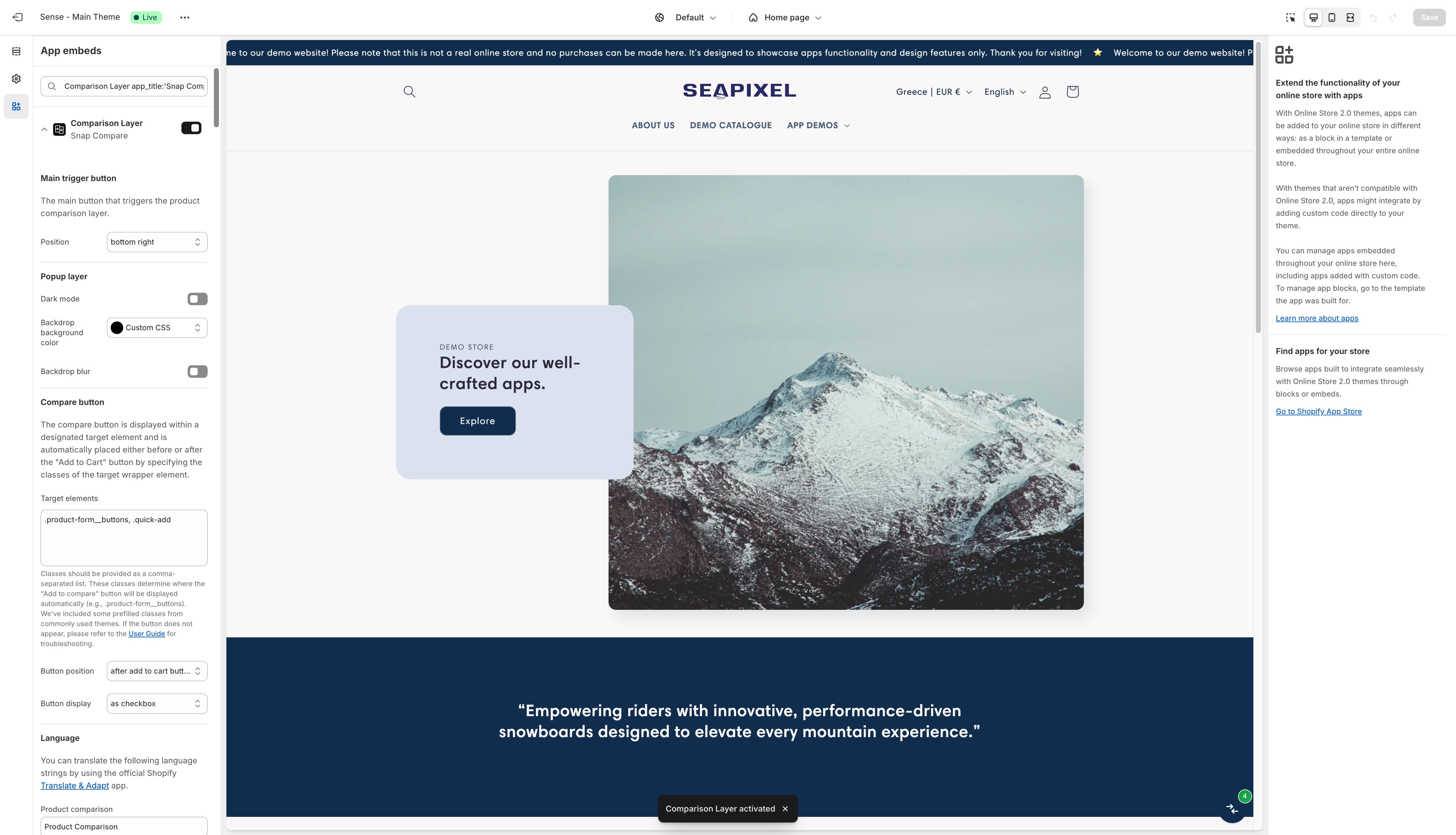
Once enabled, the comparison layer can be accessed using the main button, which is automatically placed by the app. The position of the button can be customized through the embed settings.
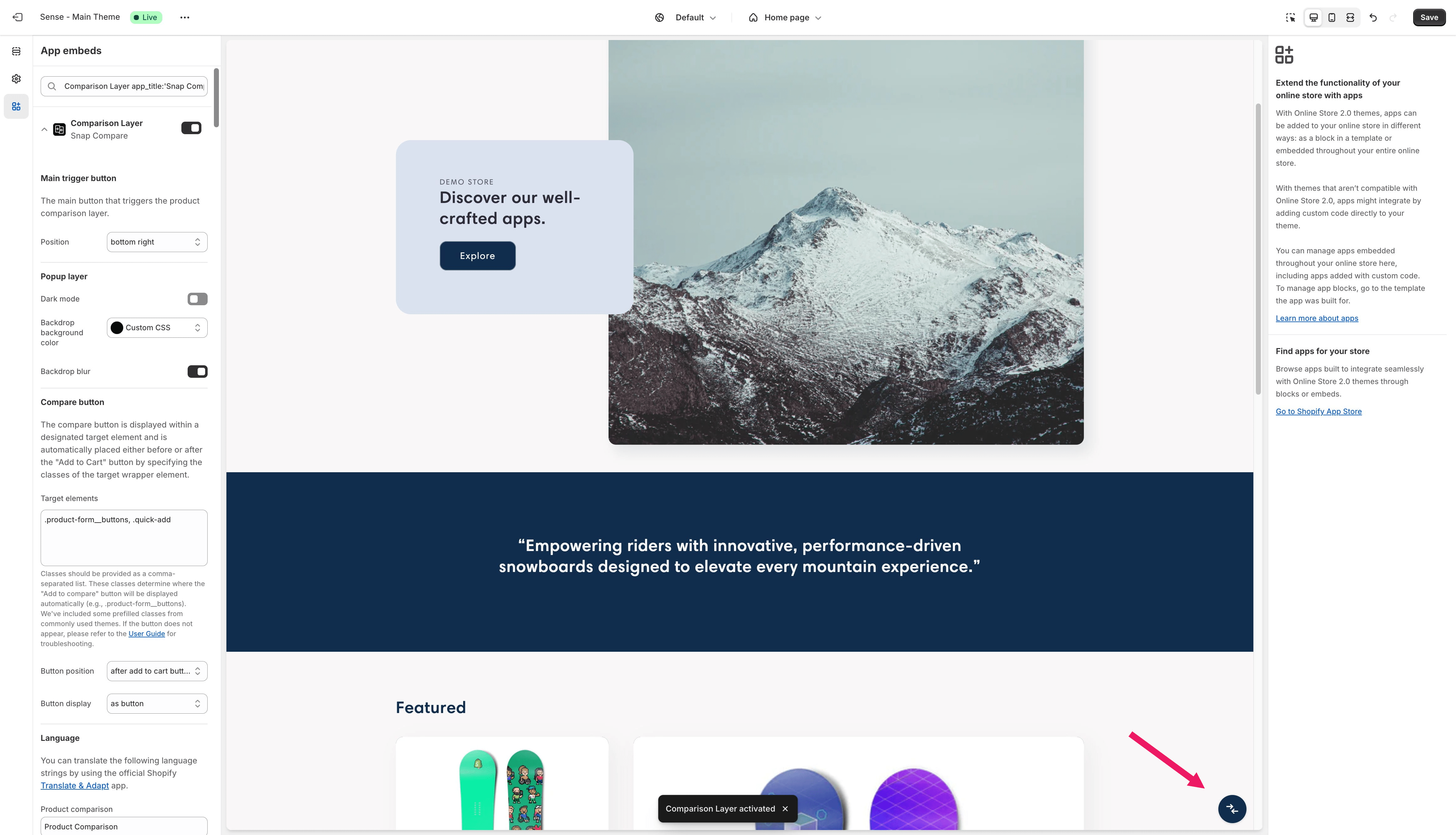
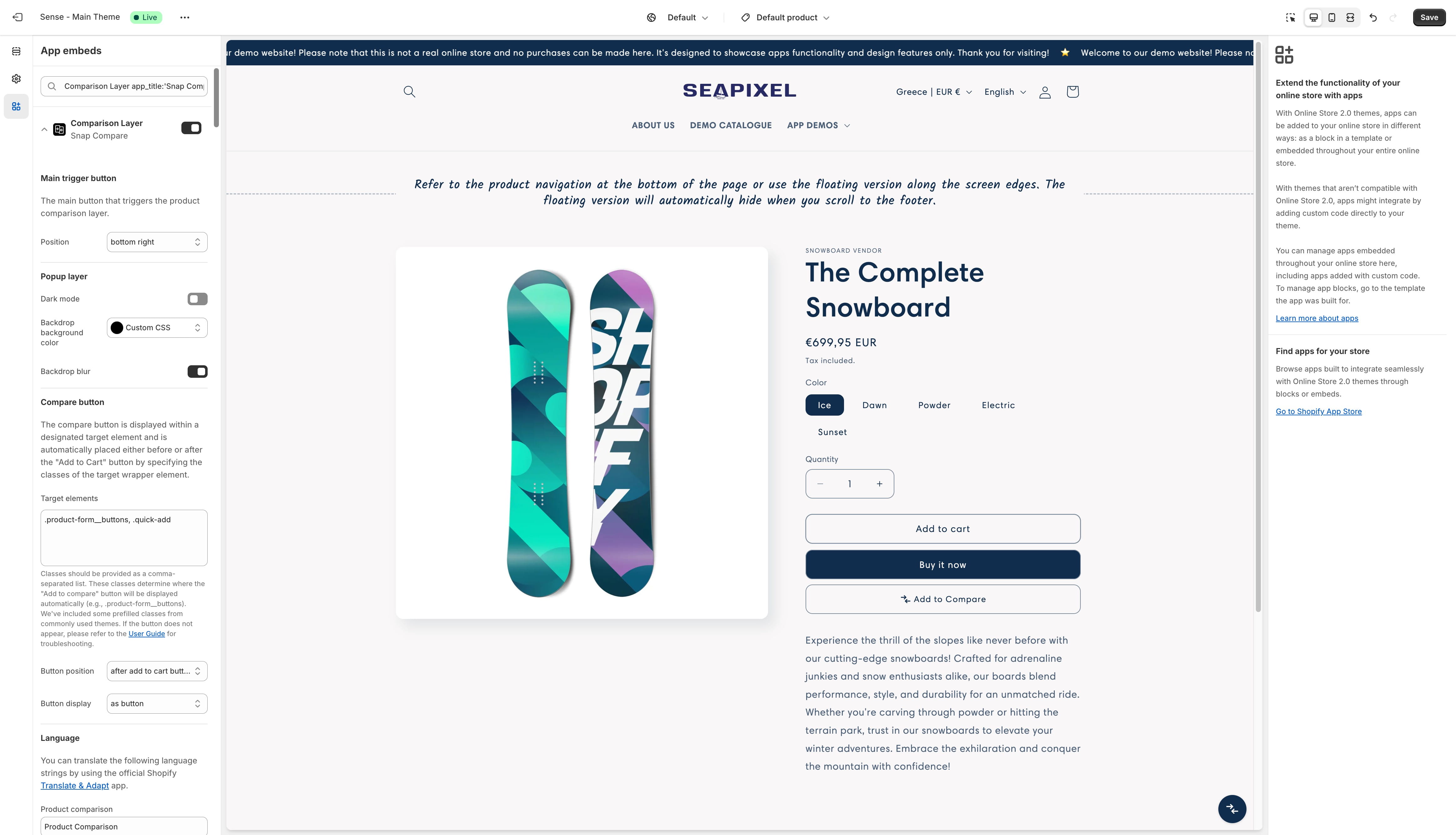
The comparison list is empty. Let's add some products to it!
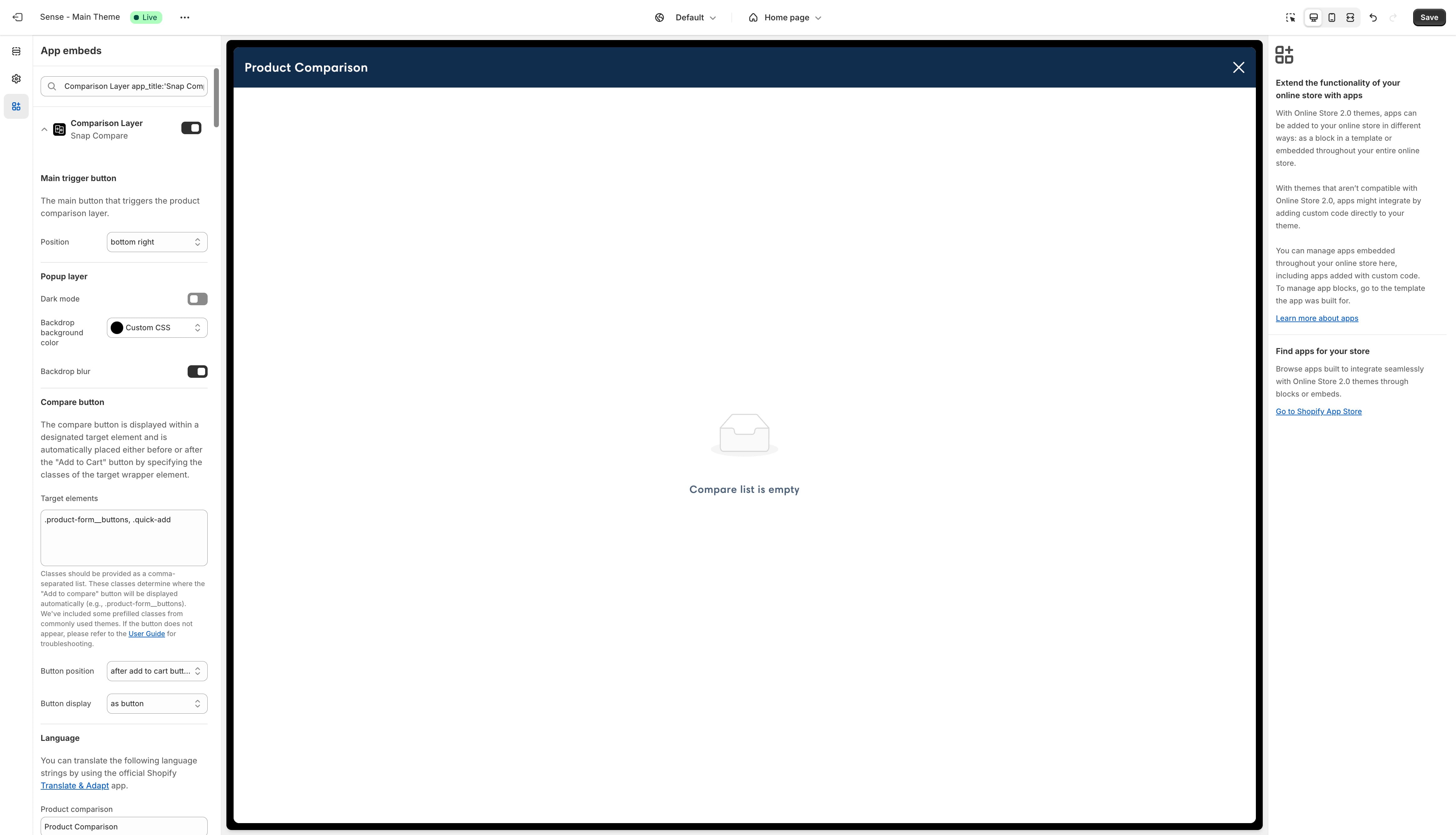
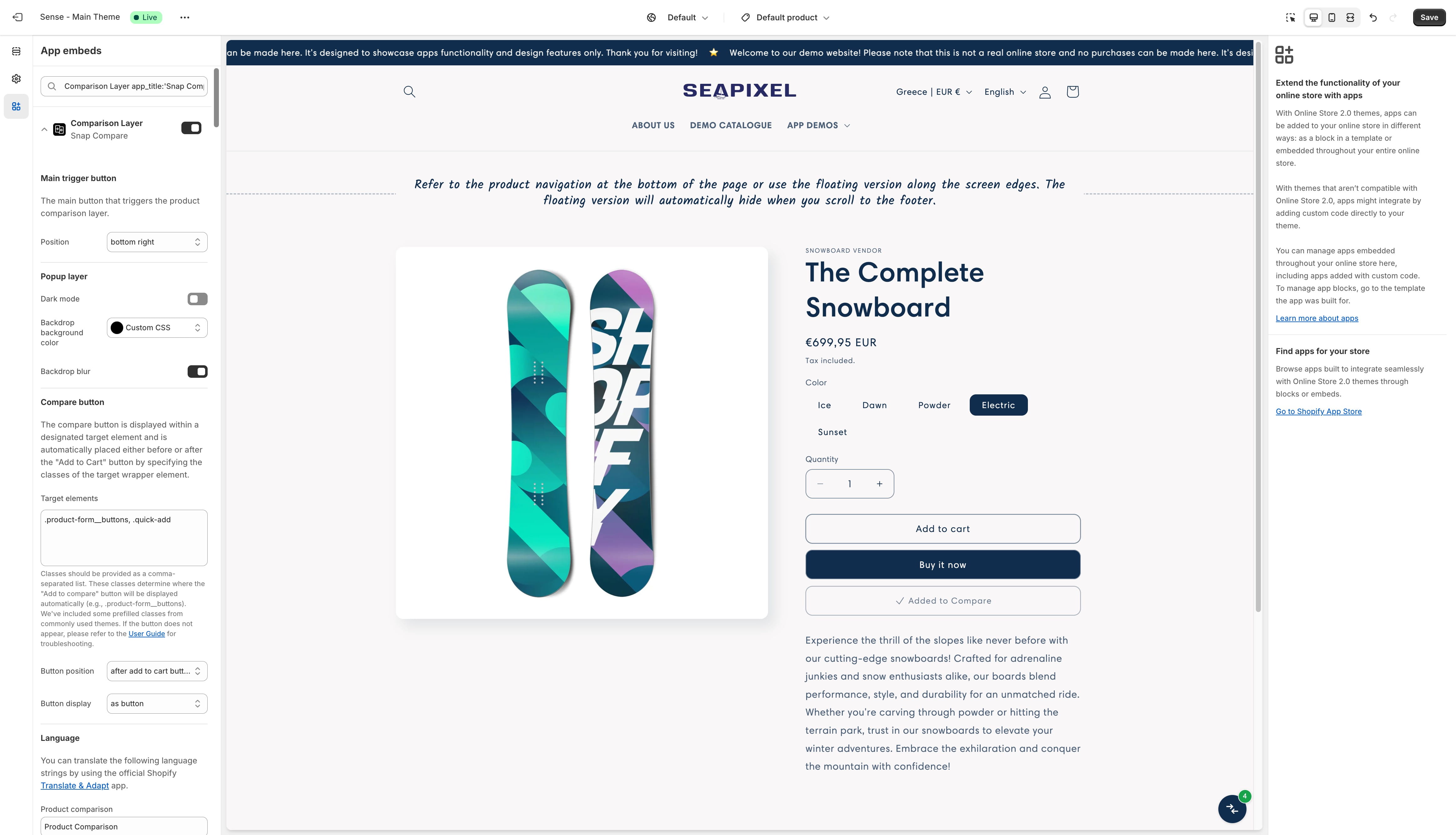
You can add products and product variants to the comparison list using the "Add to Compare" button, which is automatically placed by the app. The position and style of the button can be customized through the embed settings.
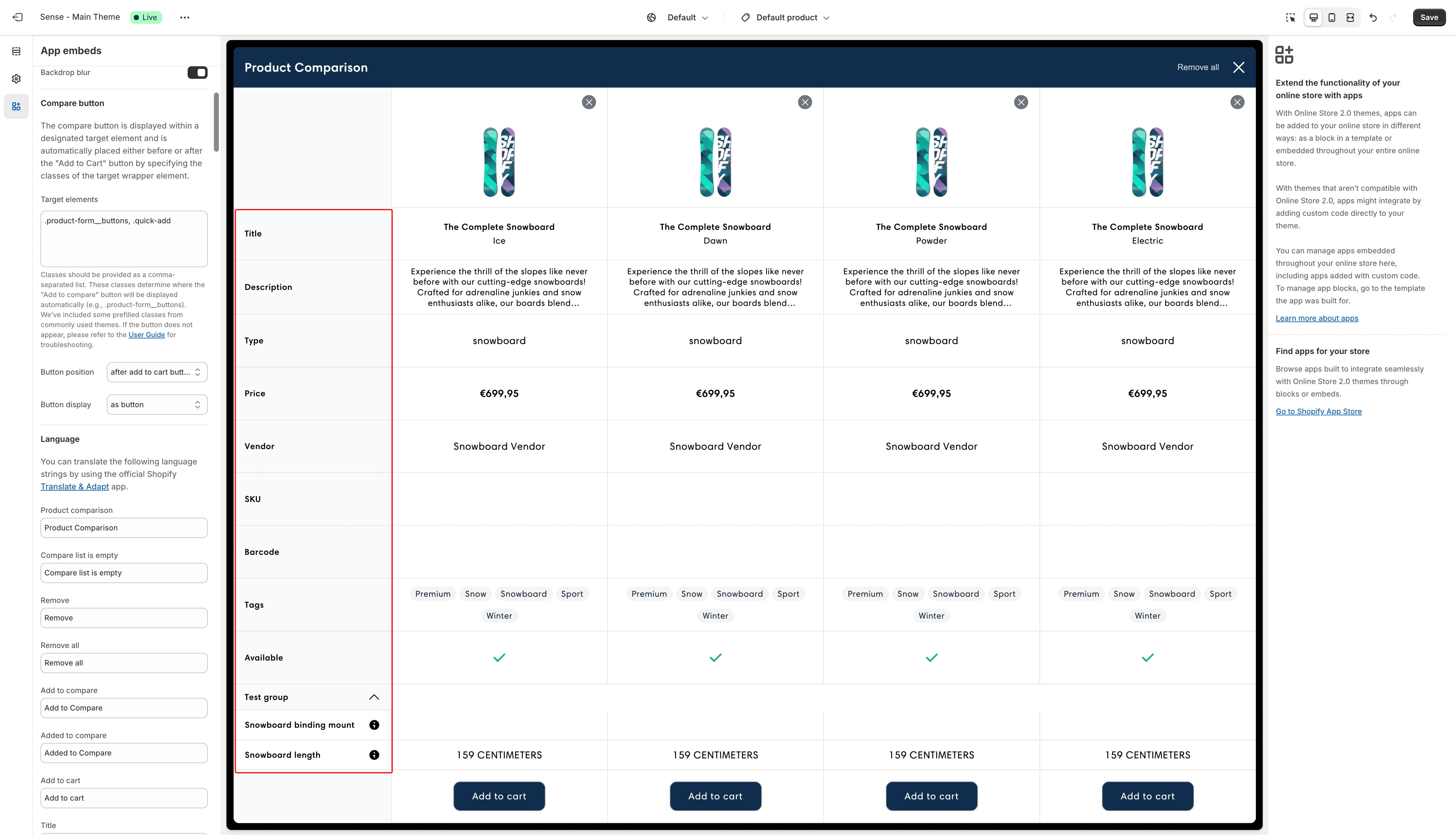
Once you've added a few products, let's check out the comparison grid to see how it looks.
Product options and additional custom attributes can be configured and managed through the app settings.
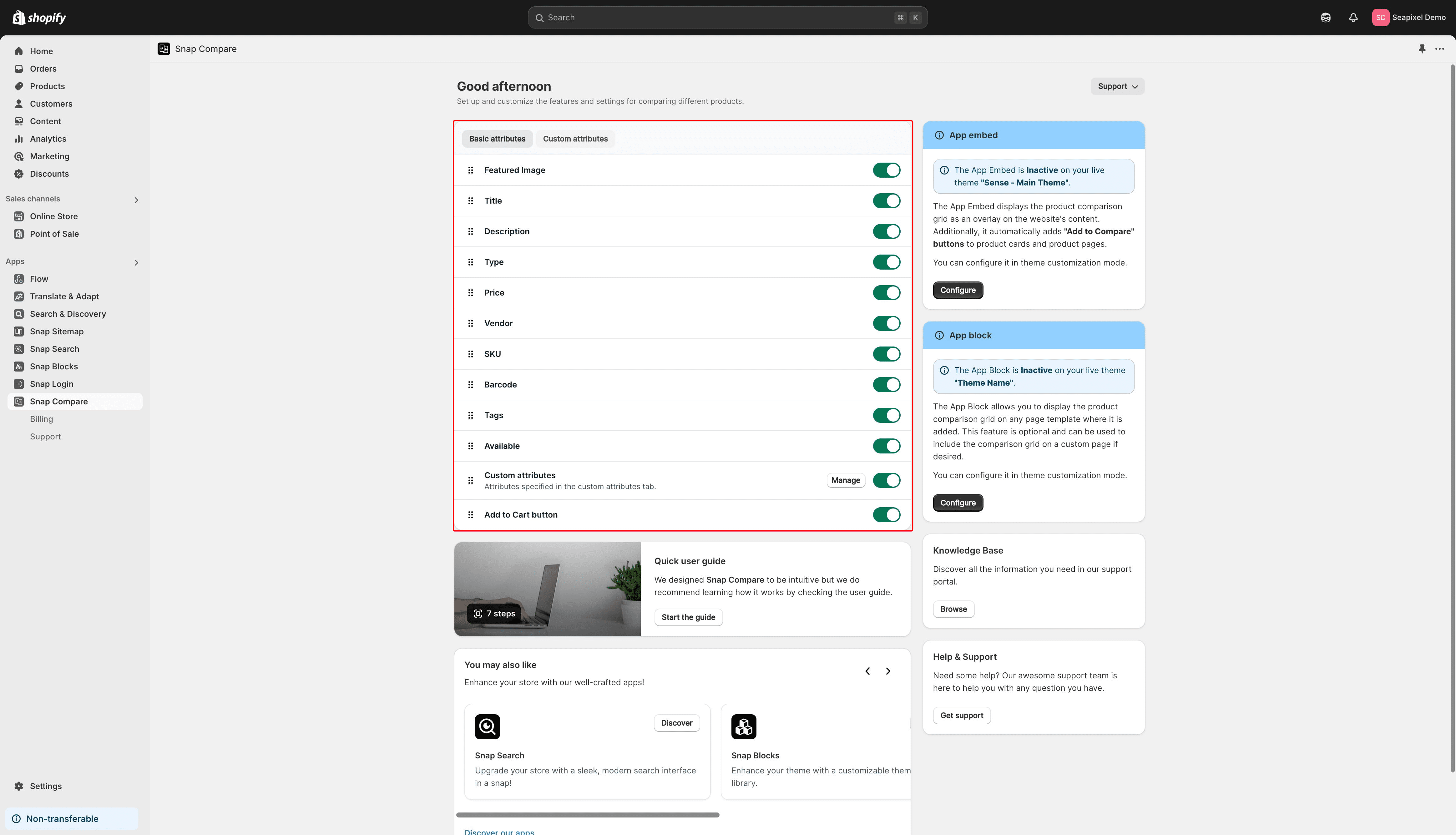
From the app admin, you can customize and reorder basic product attributes, as well as add metafields and custom definitions as comparable options.
If the "Add to Compare" button does not appear, you may need to adjust the target elements that control its automatic placement. These settings can be found in the "Target Elements" section.
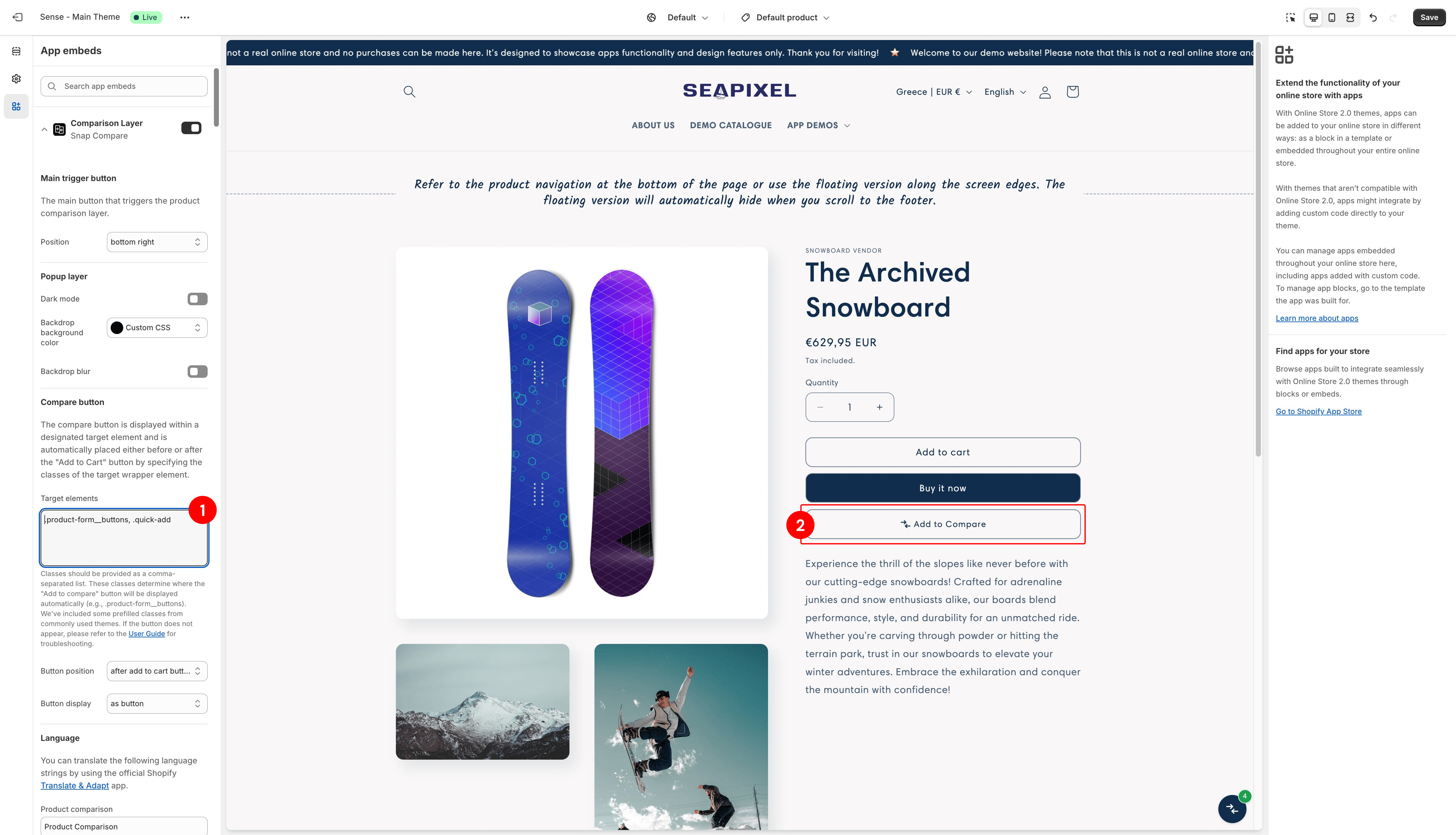
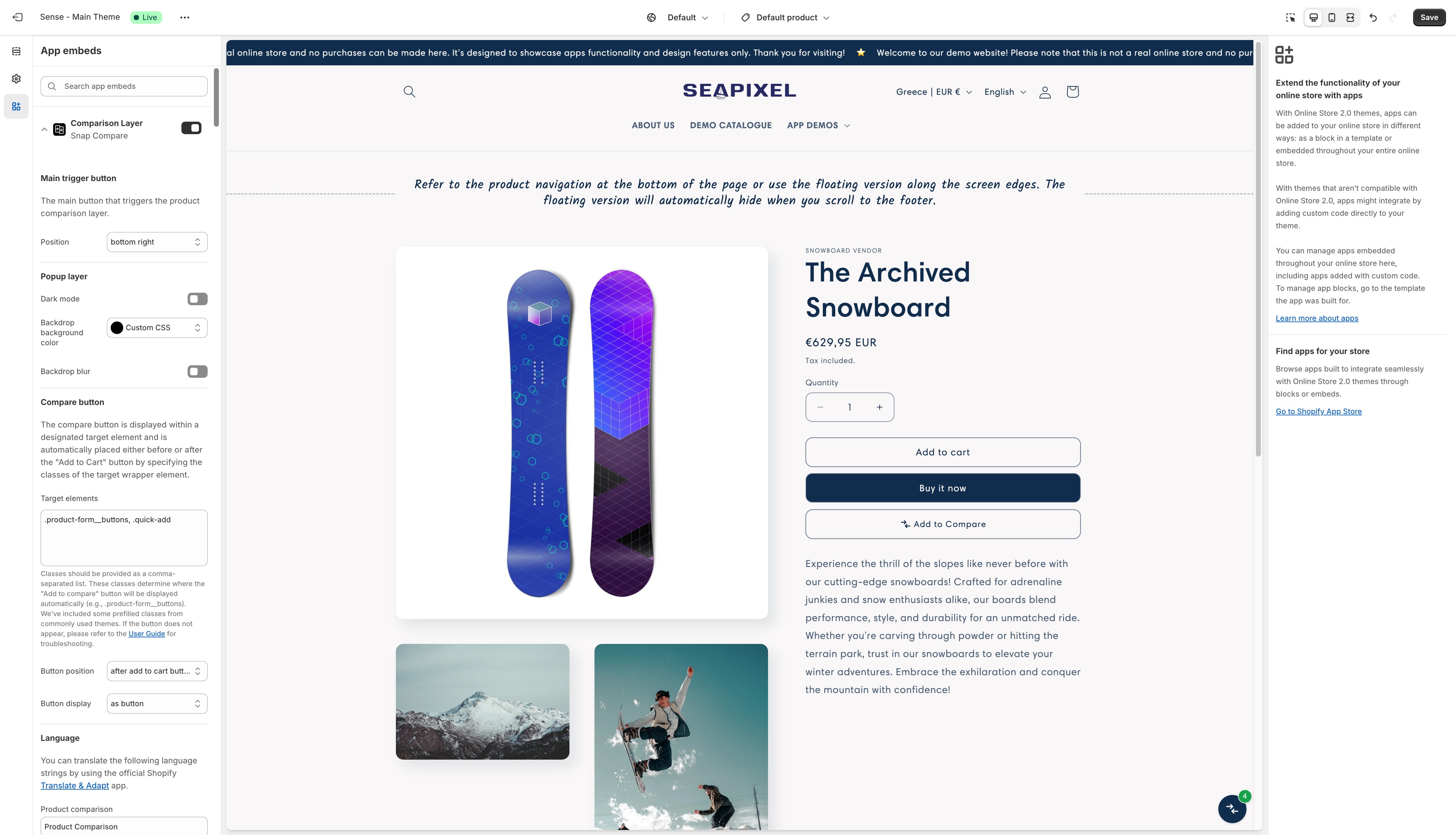
Explore all available options and configure the app to suit your needs. Preview all changes made in the settings in real-time.
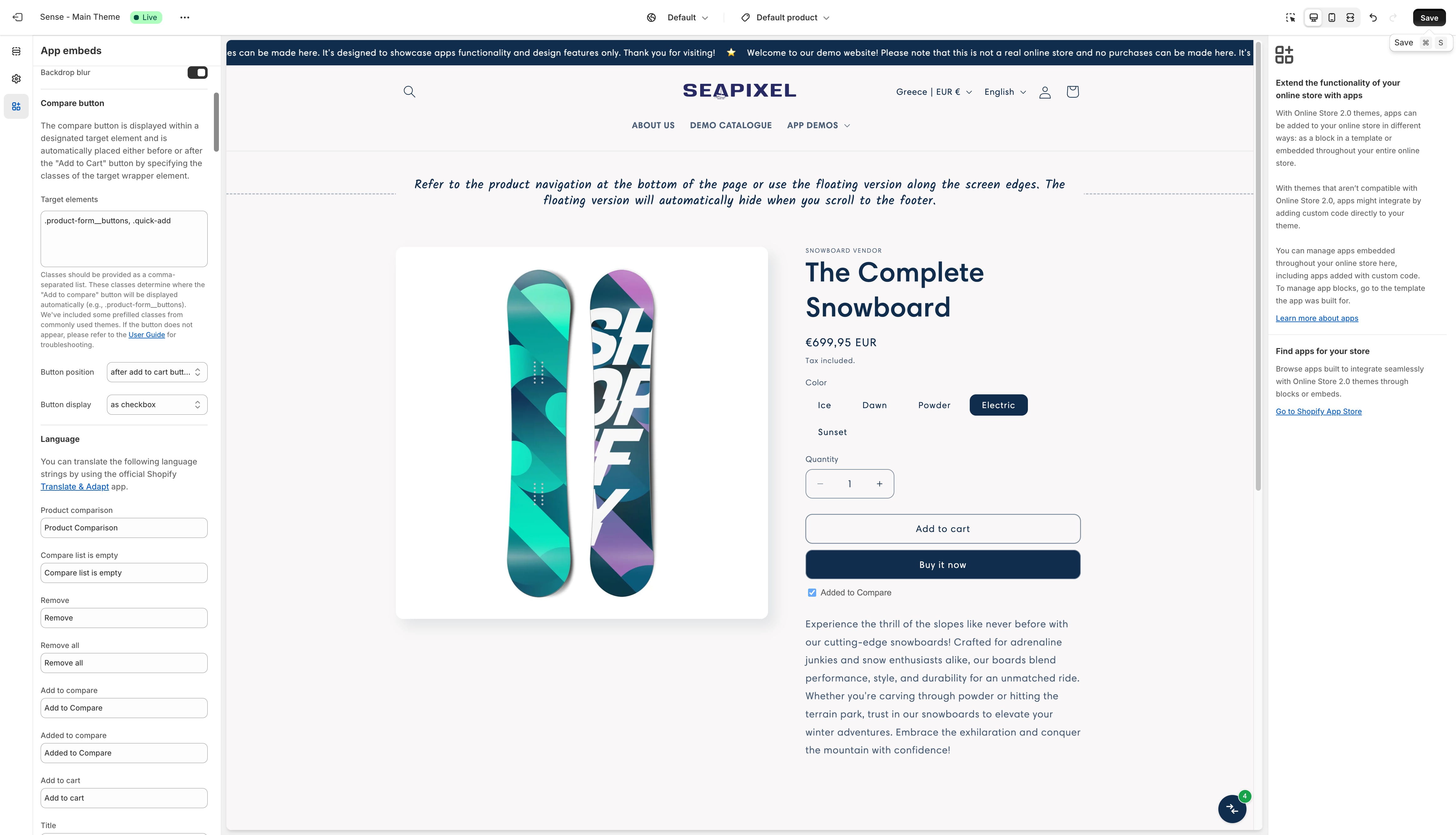
Click "Save" when you are ready to publish the changes to the current theme.
Frequently Asked Questions
- How do I access the Snap Compare app embed in the Shopify theme editor?
To access the app embed in the Shopify theme editor, simply click the "Configure" button within the Snap Compare app settings.
- What do I do if the "Add to Compare" button does not appear on my product pages?
The "Add to Compare" button is automatically placed by the app. If it doesn't appear, check the "Target Elements" section in the app settings to adjust the settings that control its placement.
- How can I customize which product attributes are displayed in the comparison grid?
You can customize and reorder basic product attributes, as well as add metafields and custom definitions as comparable options, directly from the app admin settings.
- Where can I find the main button to access the comparison layer?
The comparison layer can be accessed via the main button, automatically placed by the app. Its position is customizable in the embed settings.