Login as Customer - Shopify flow integration
When an admin or staff member logs in as a customer through the Snap Login app, a Shopify Flow event is triggered via the Flow app (learn more at https://apps.shopify.com/flow). This enables you to set up post-login actions, such as adding a customer note or performing other custom actions.
Example: Add or update a customer note after logging in as a customer.
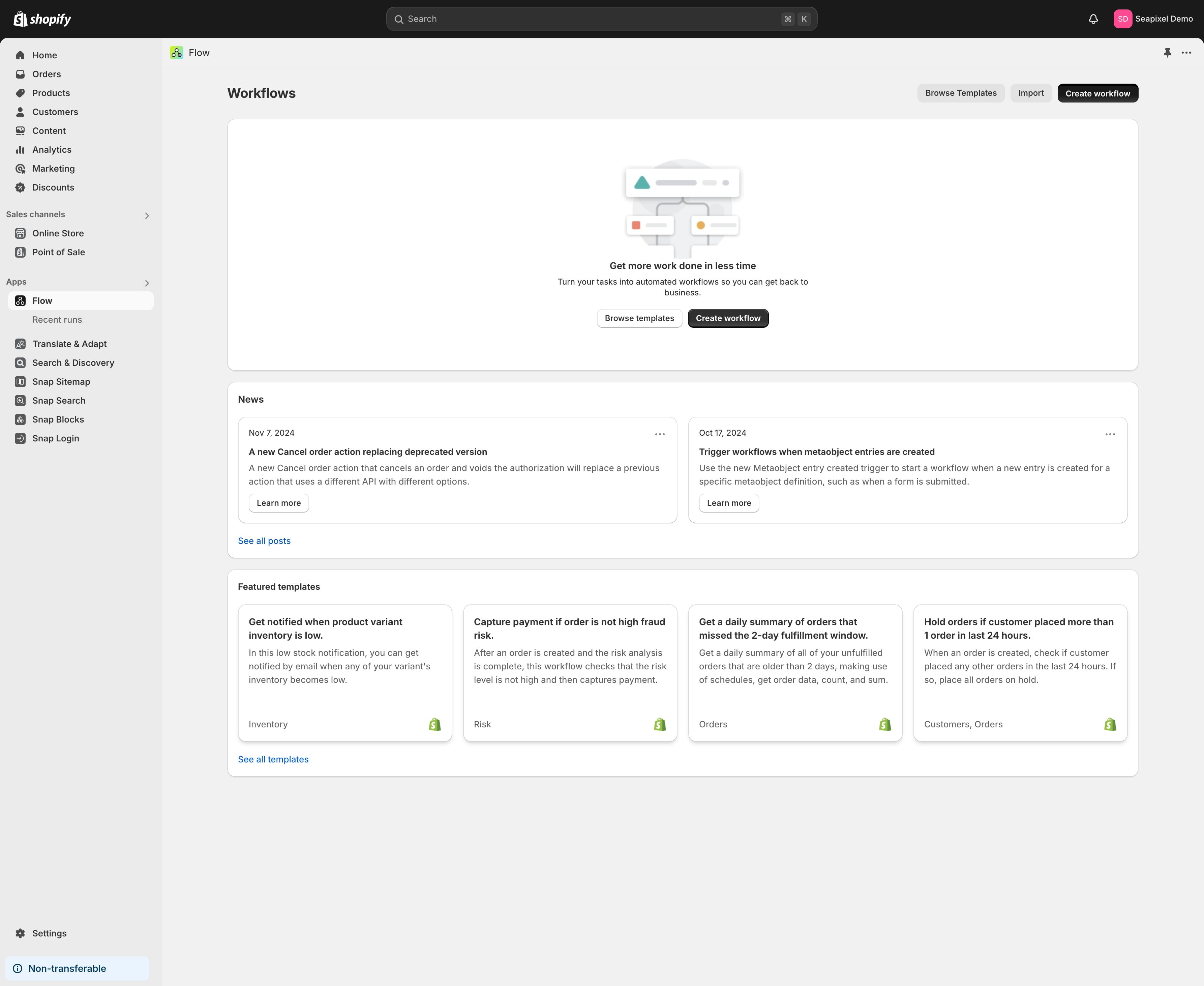
Open the Shopify Flow app and create a new worflow by clicking at the "Create workflow" button.

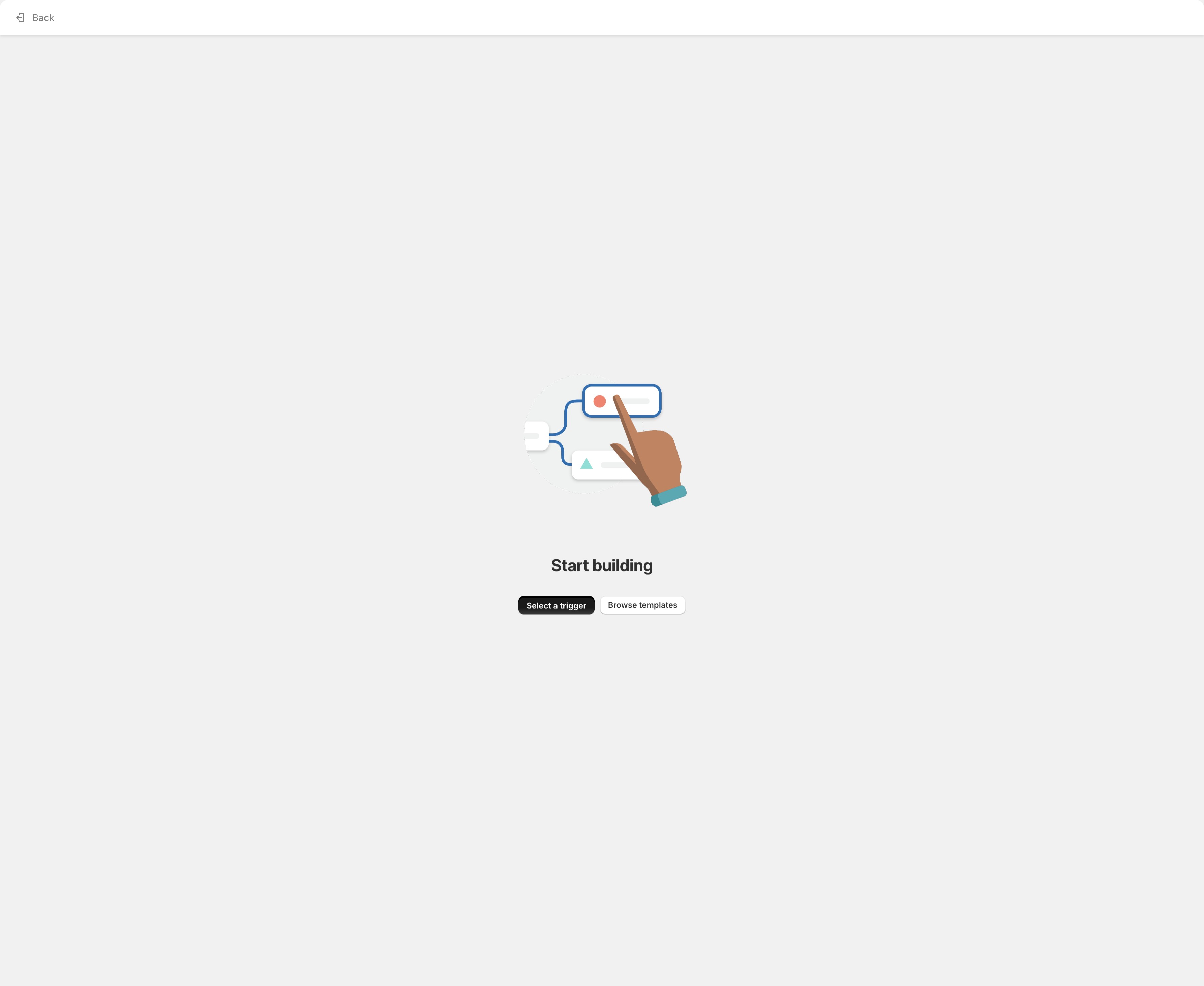
Click on "Select a trigger"
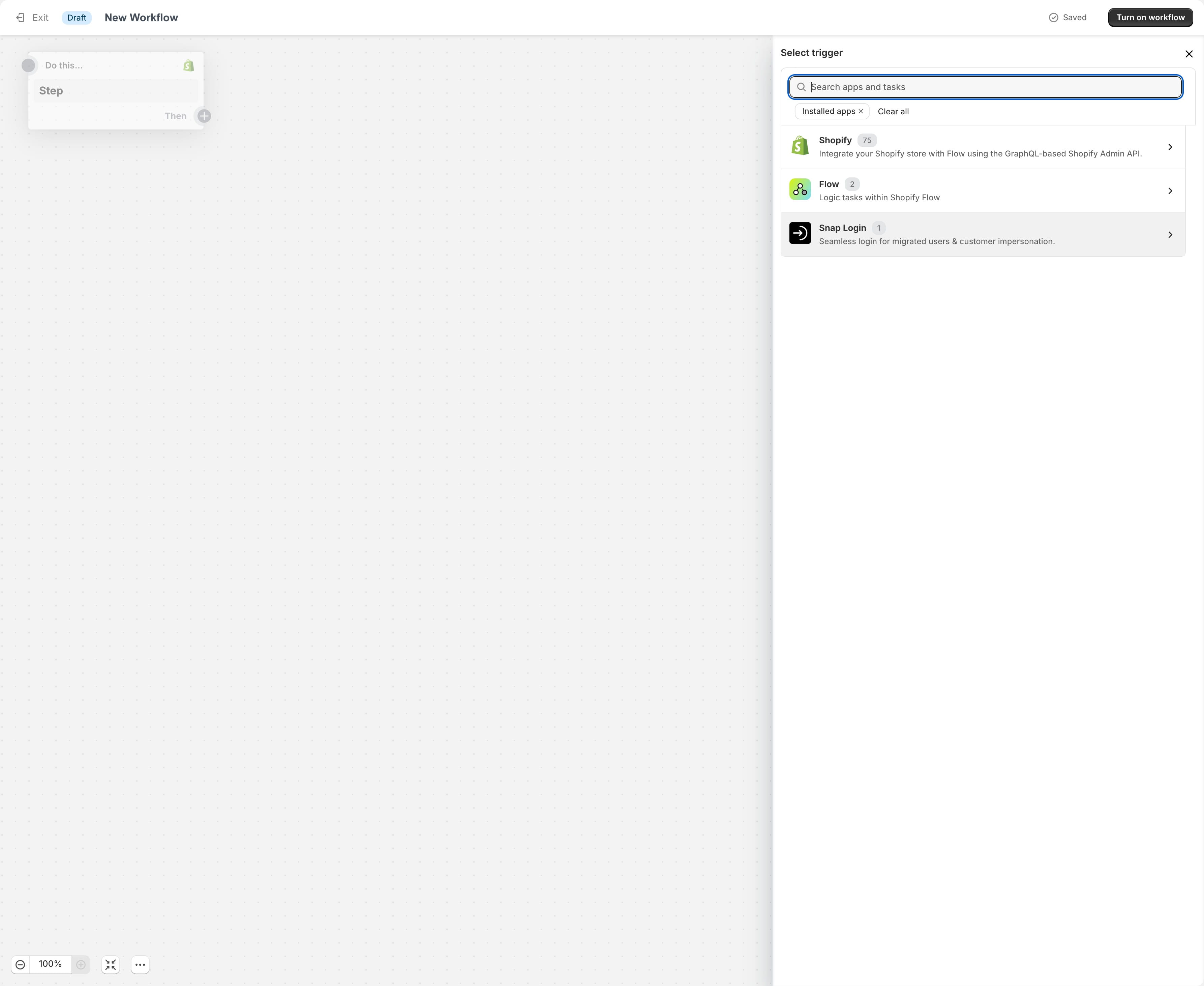
To set up this new workflow, start by selecting a trigger. Find the "Snap Login" app and click to select it.
Find the "Login as customer" event trigger.
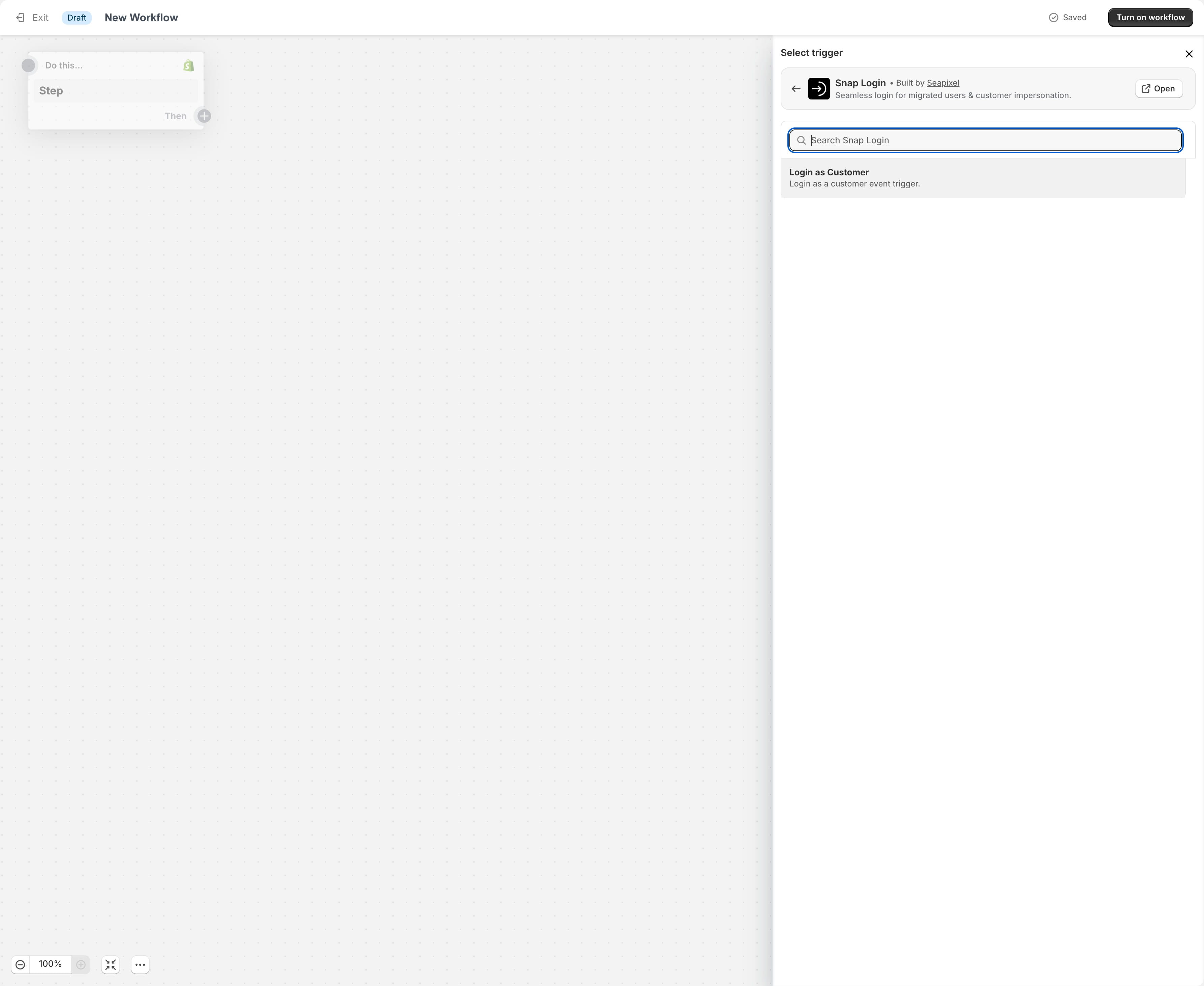
Select this trigger.
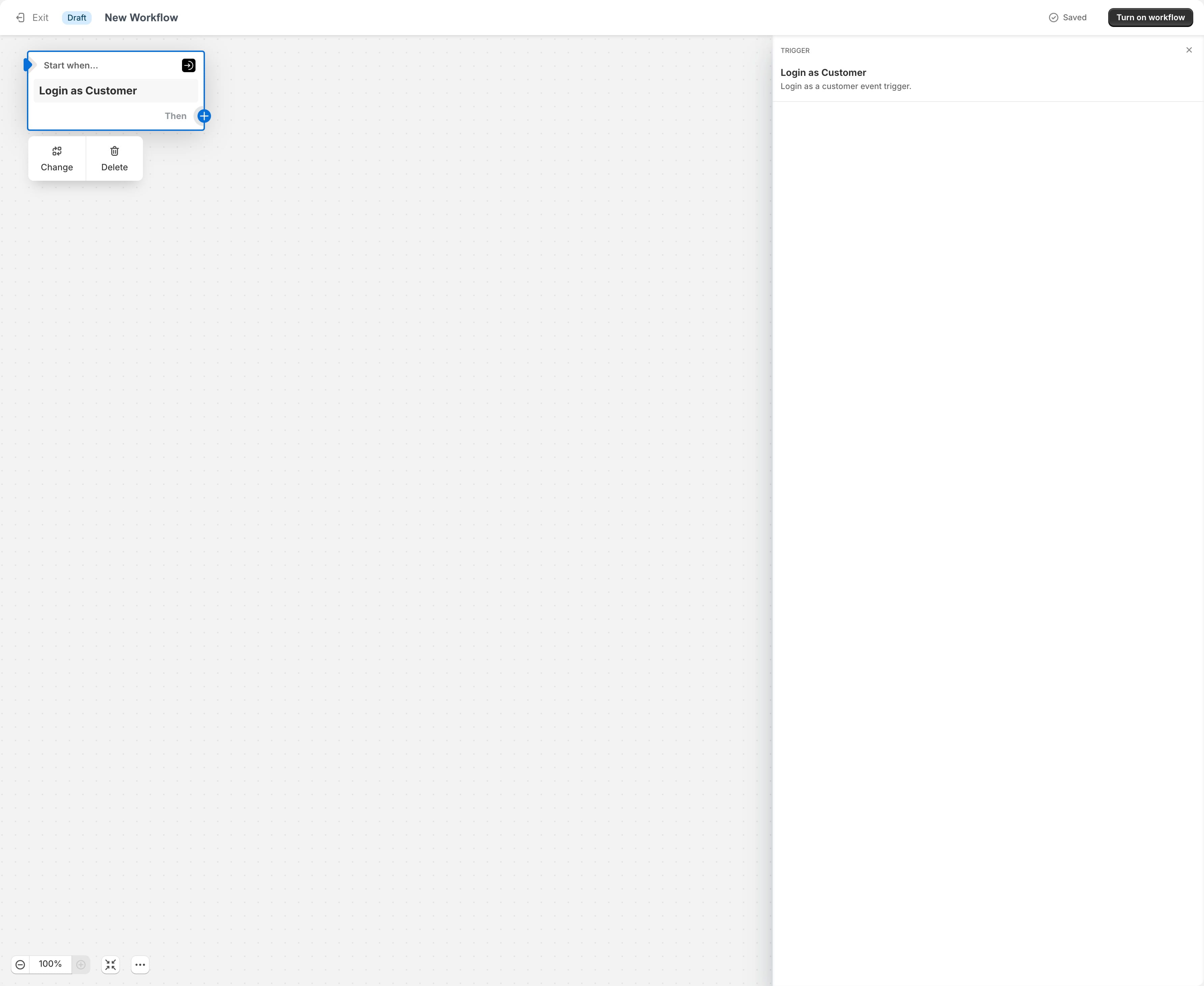
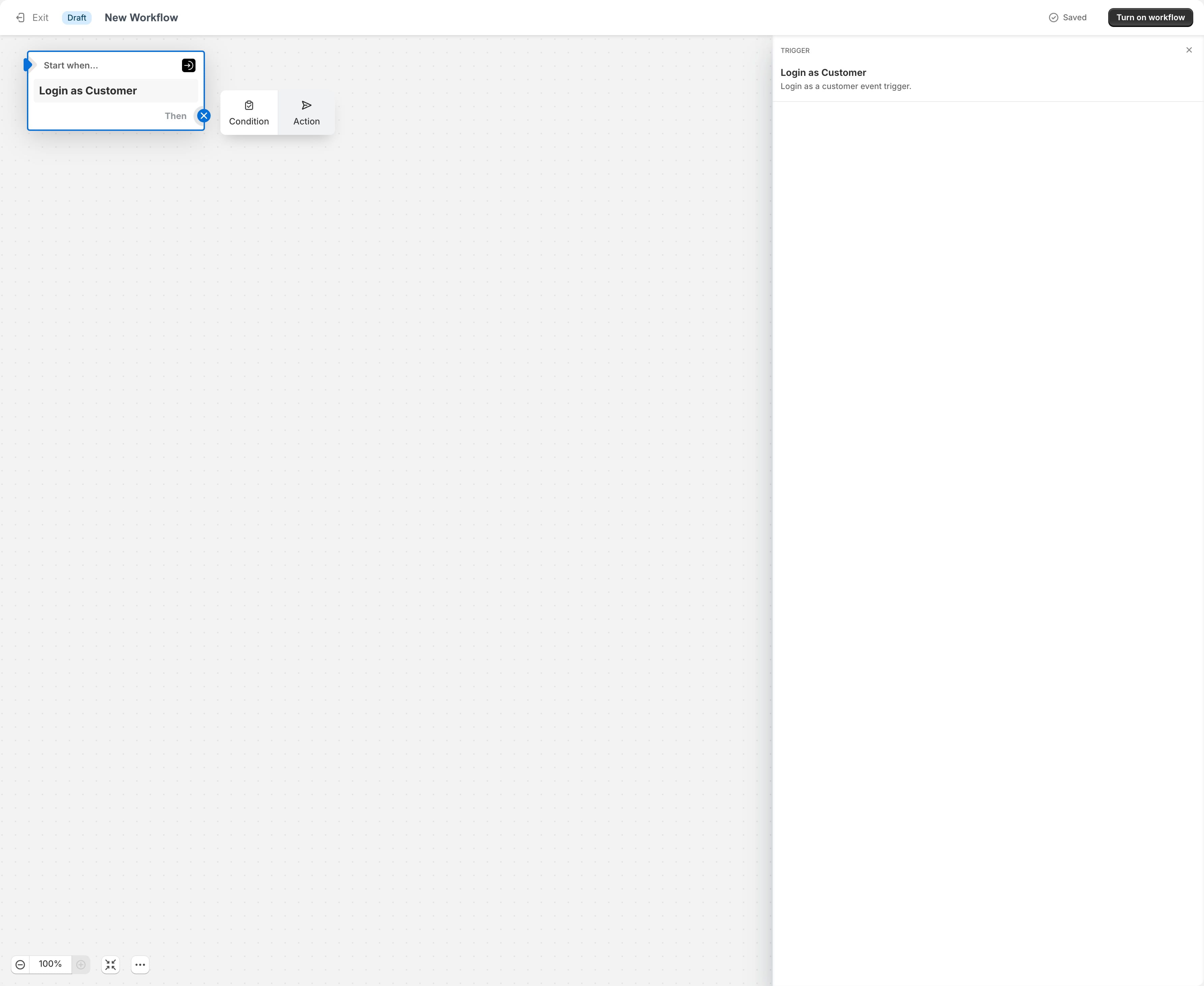
Once the event trigger is selected, add an action to it by clicking the action button in the Flow canvas.
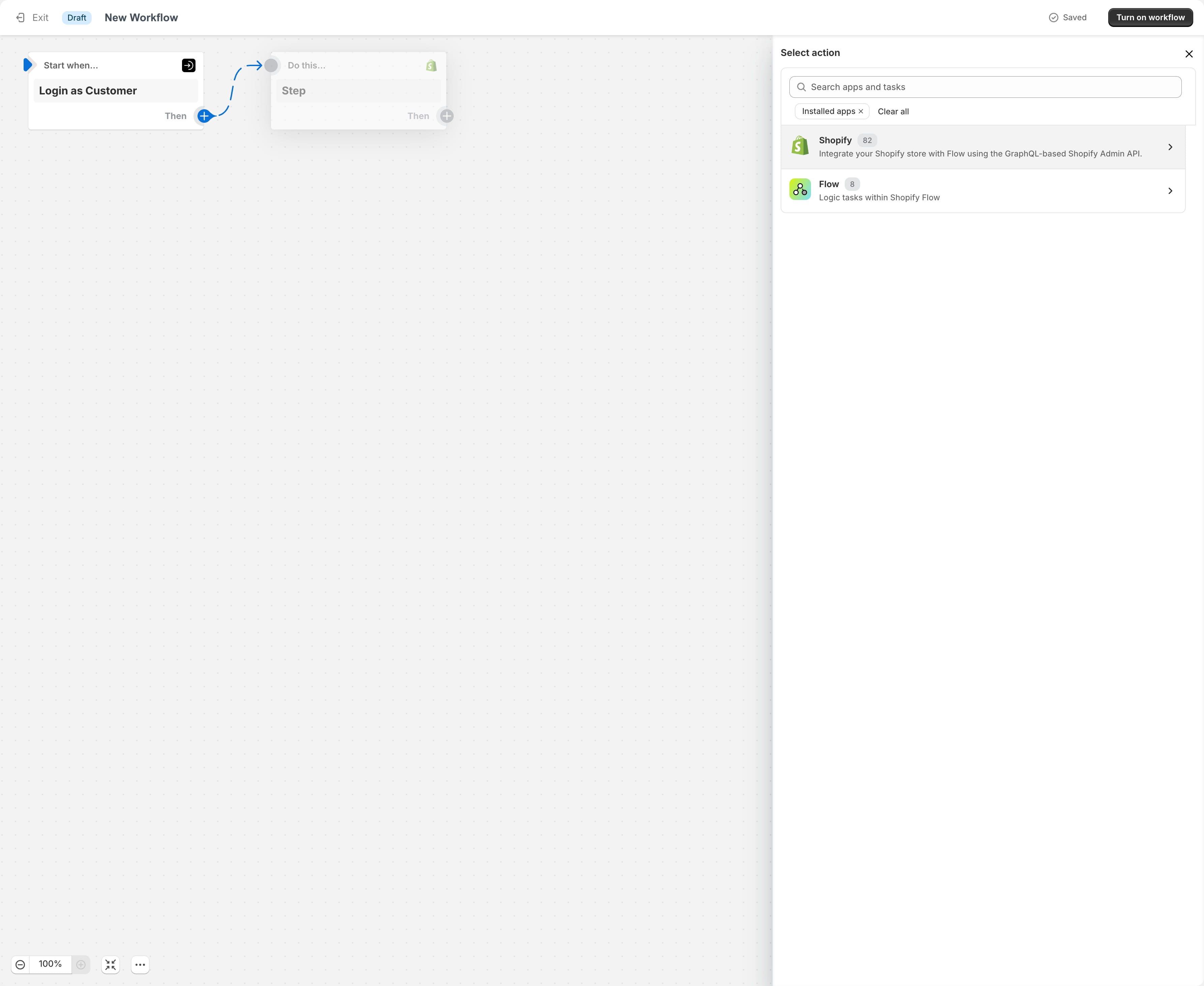
Click on "Shopify" to browse all native Shopify events.
Search for the "Update customer note" event and select it.
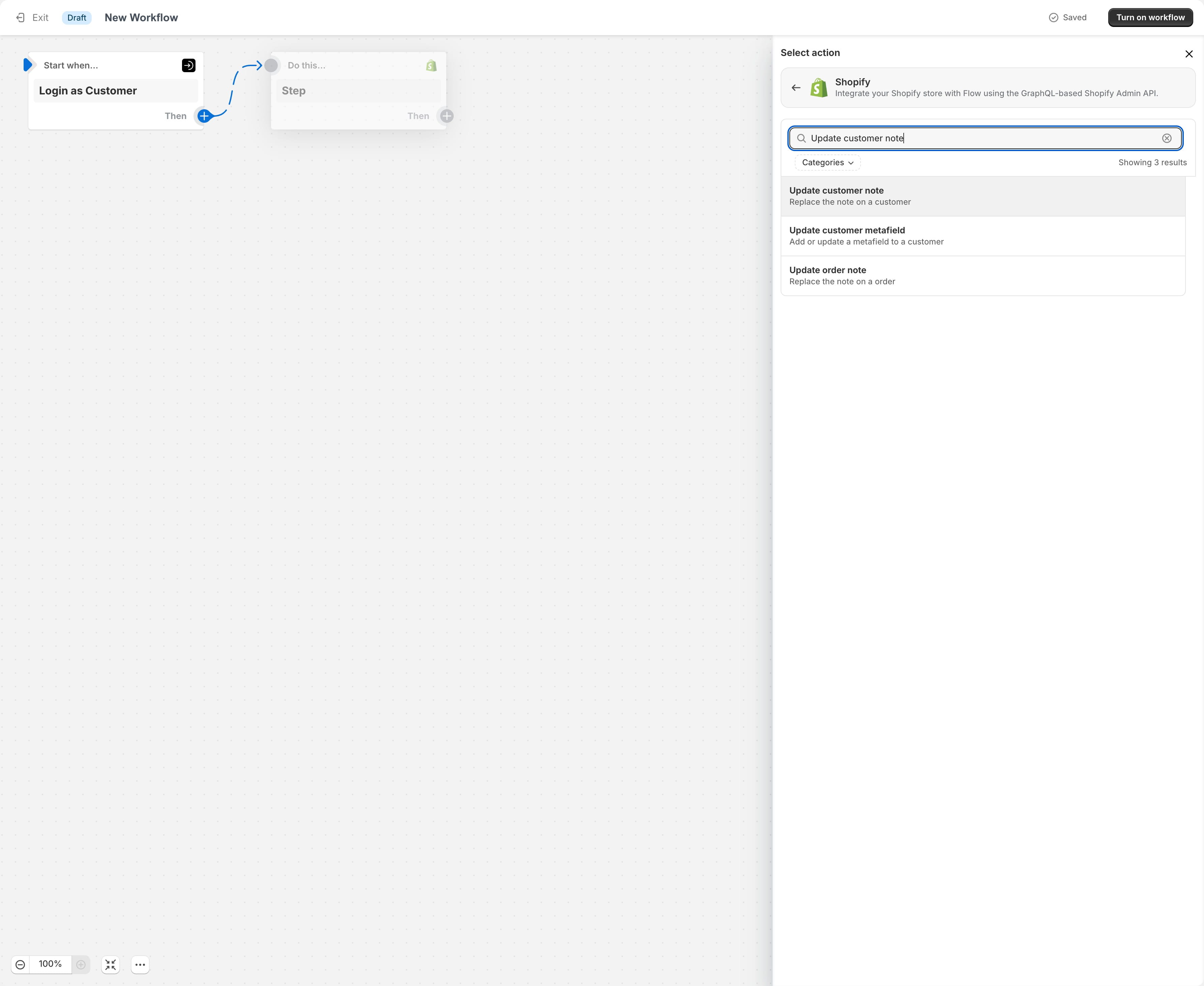
Using the app's Login as Customer feature, you can add a custom note that will appear for the customer you’re impersonating.
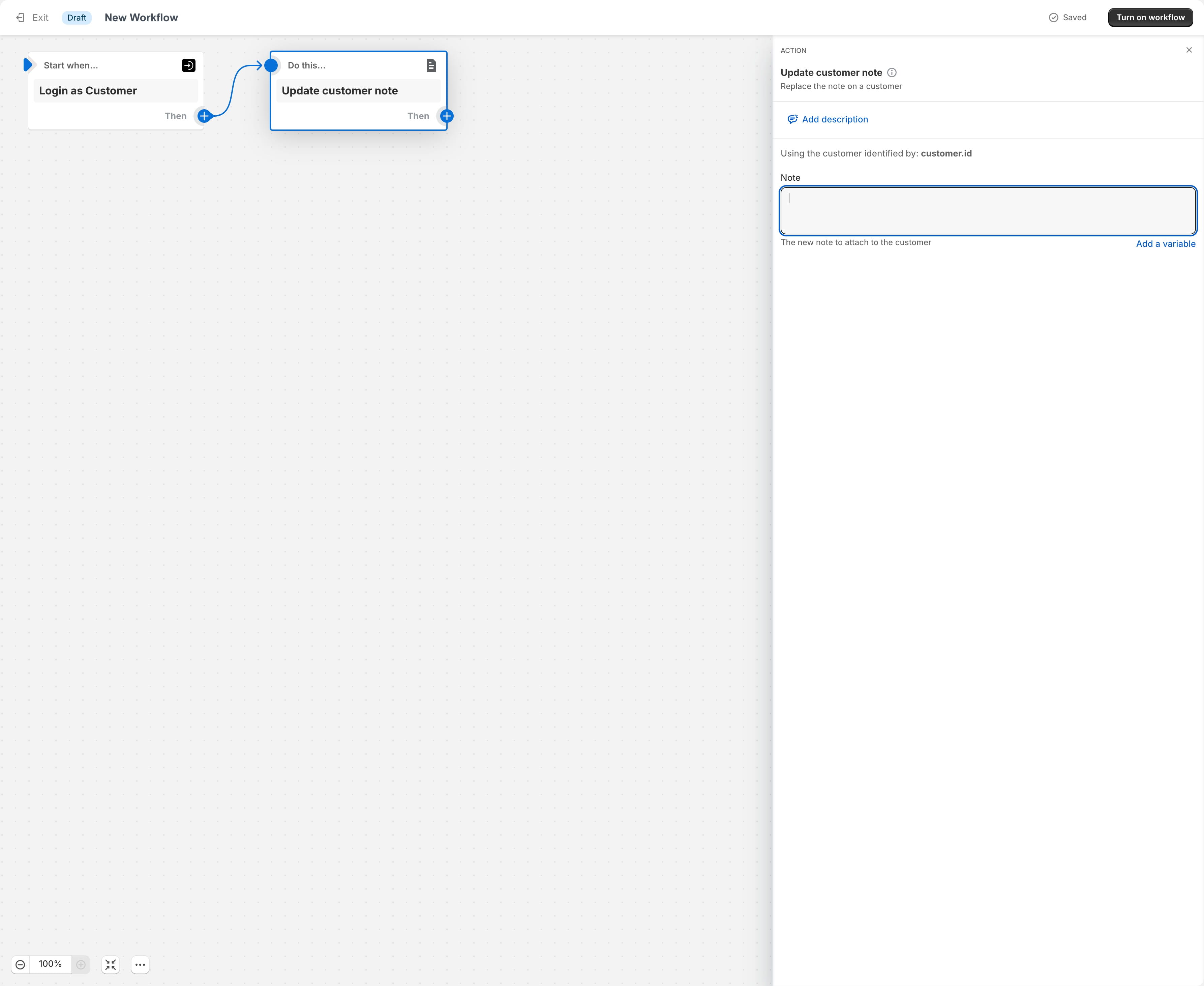
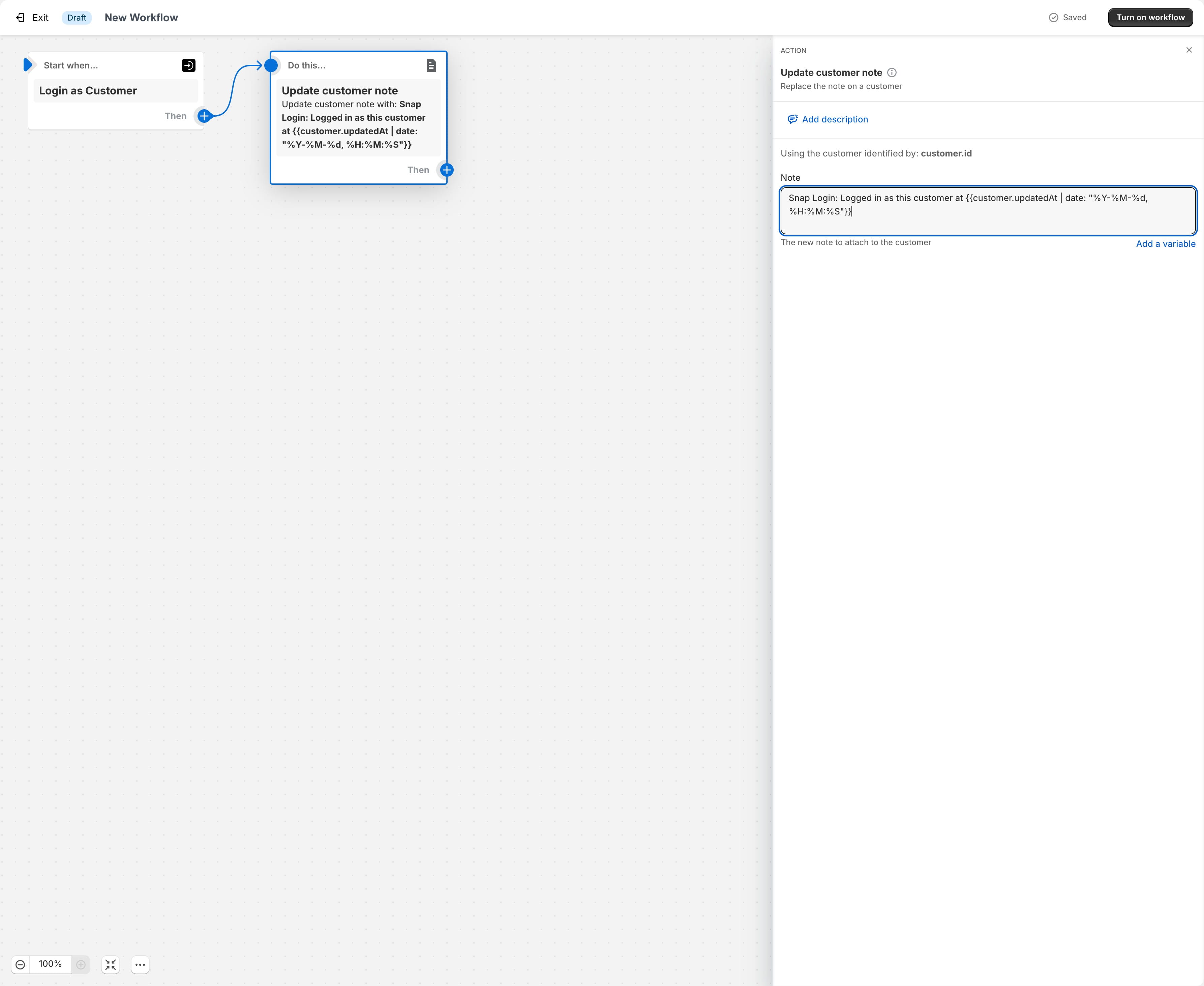
In this example, we’ll use custom text along with the customer’s update date, utilizing Liquid code with date filters for formatting.
Remember to name this workflow to suit your needs.
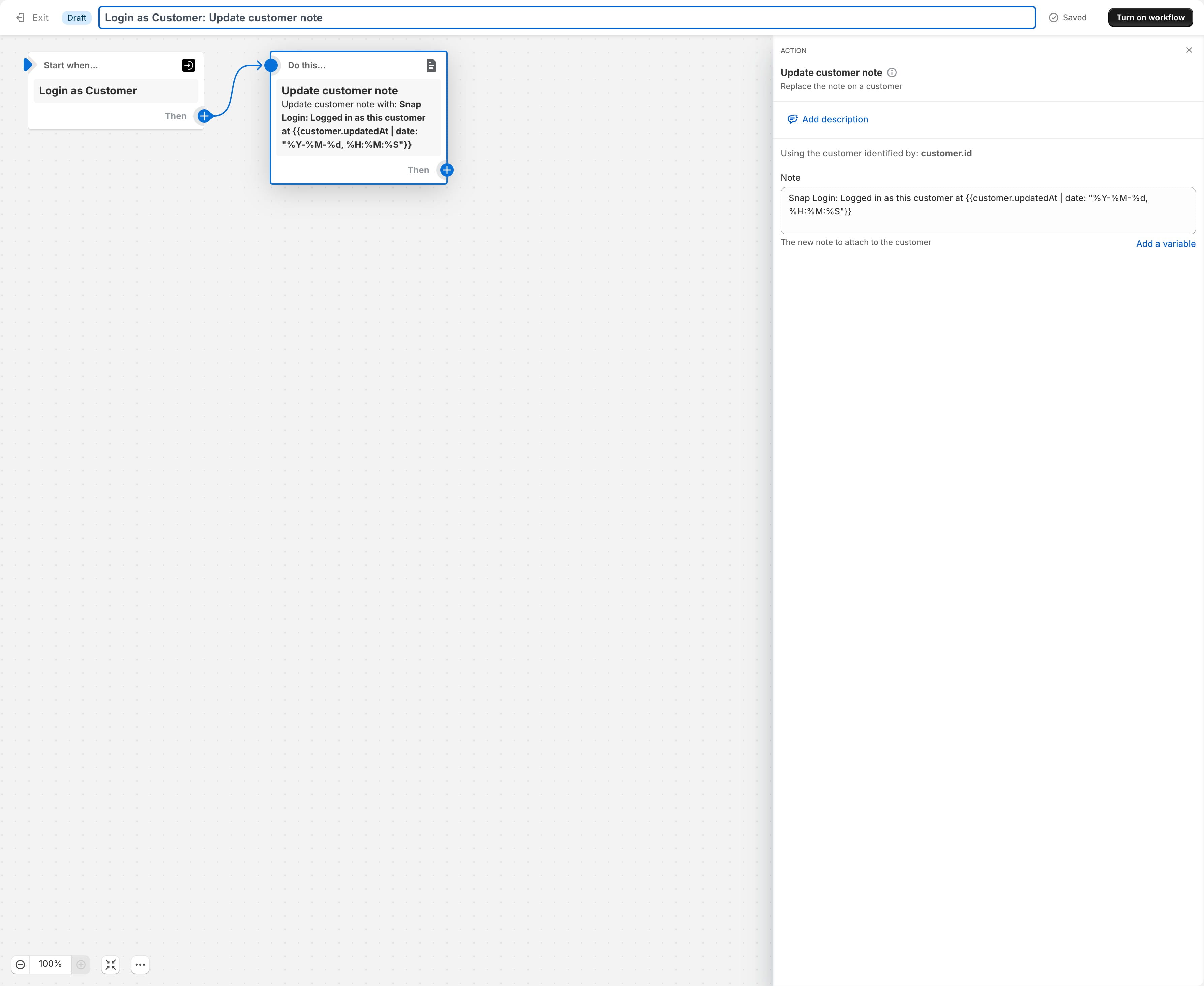
Once you've made all the changes, save and activate the workflow.
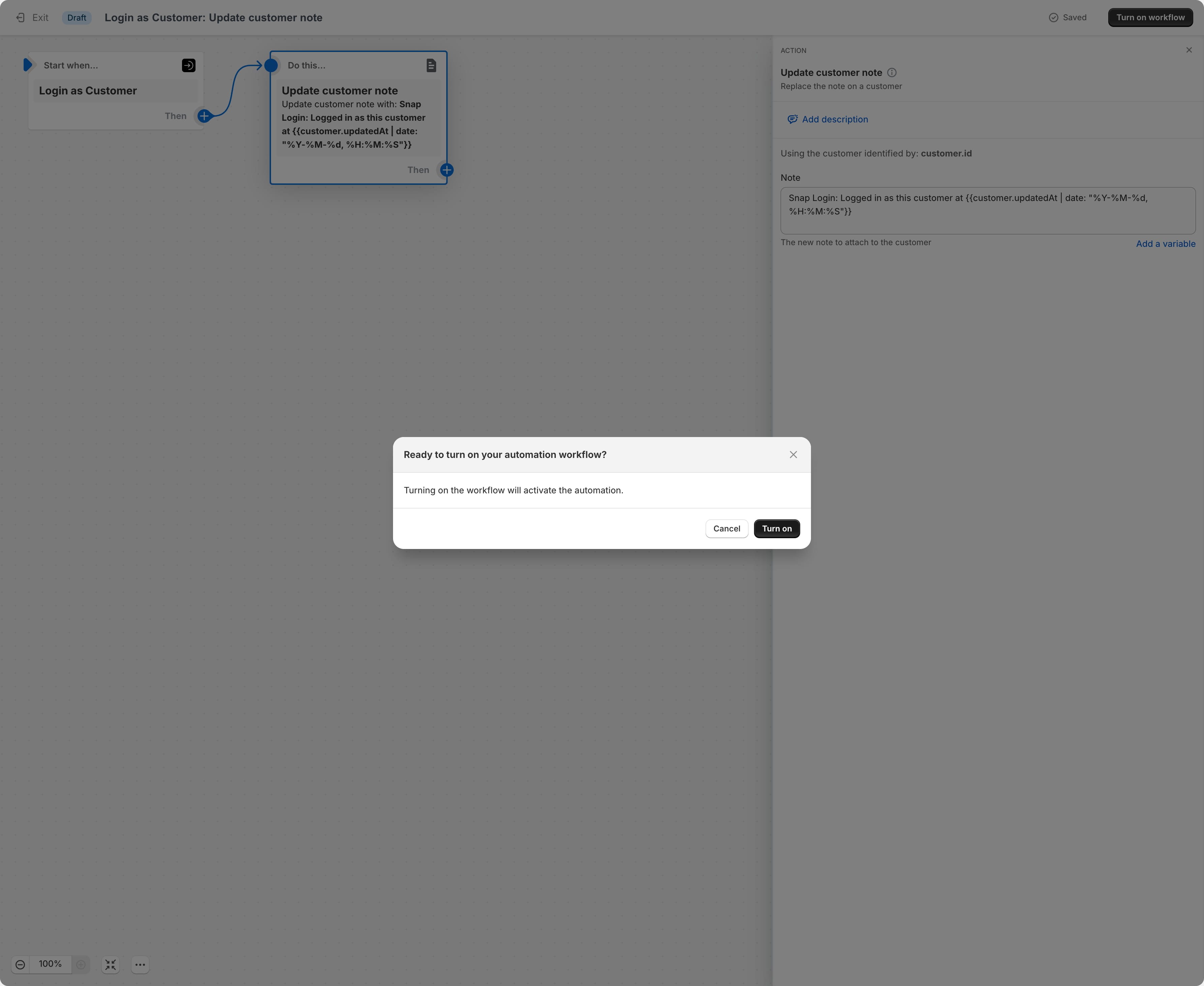
Be sure to explore additional Shopify Flow actions or combine the Login as Customer event with other apps to fully customize workflows for your unique business needs.
The next time you log in as a specific customer, the workflow will be triggered.
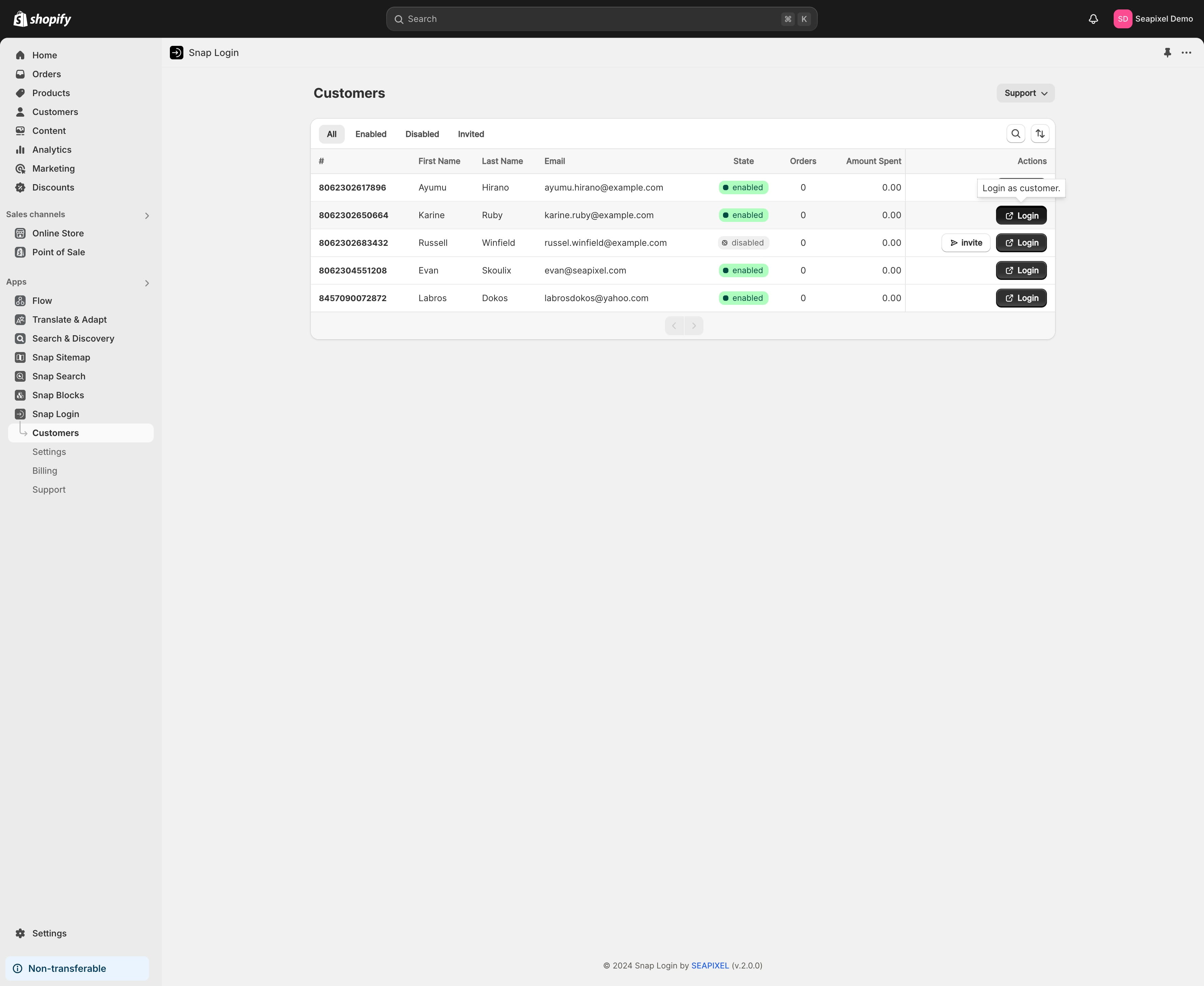
You can view the recent runs in the Flow app.
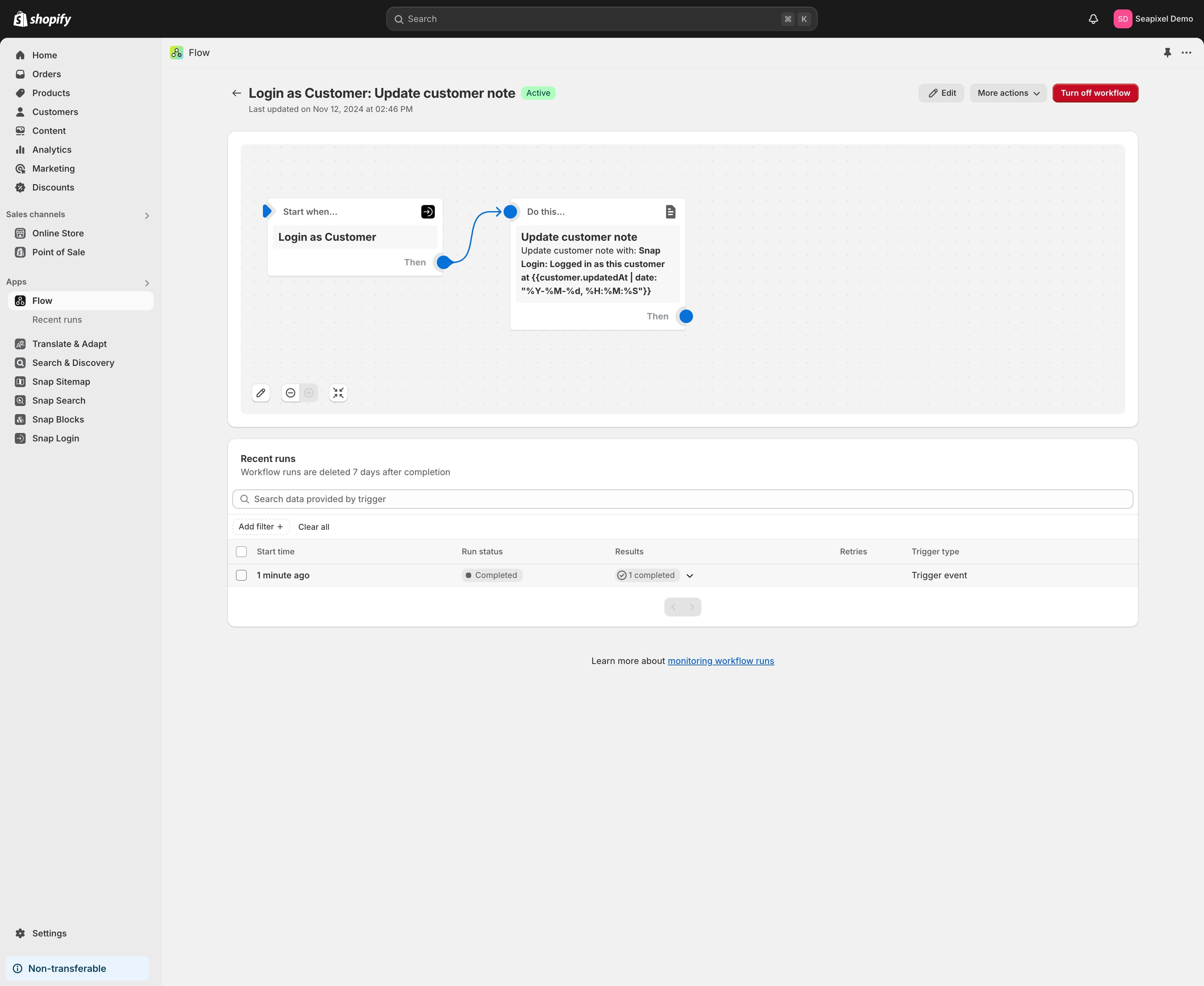
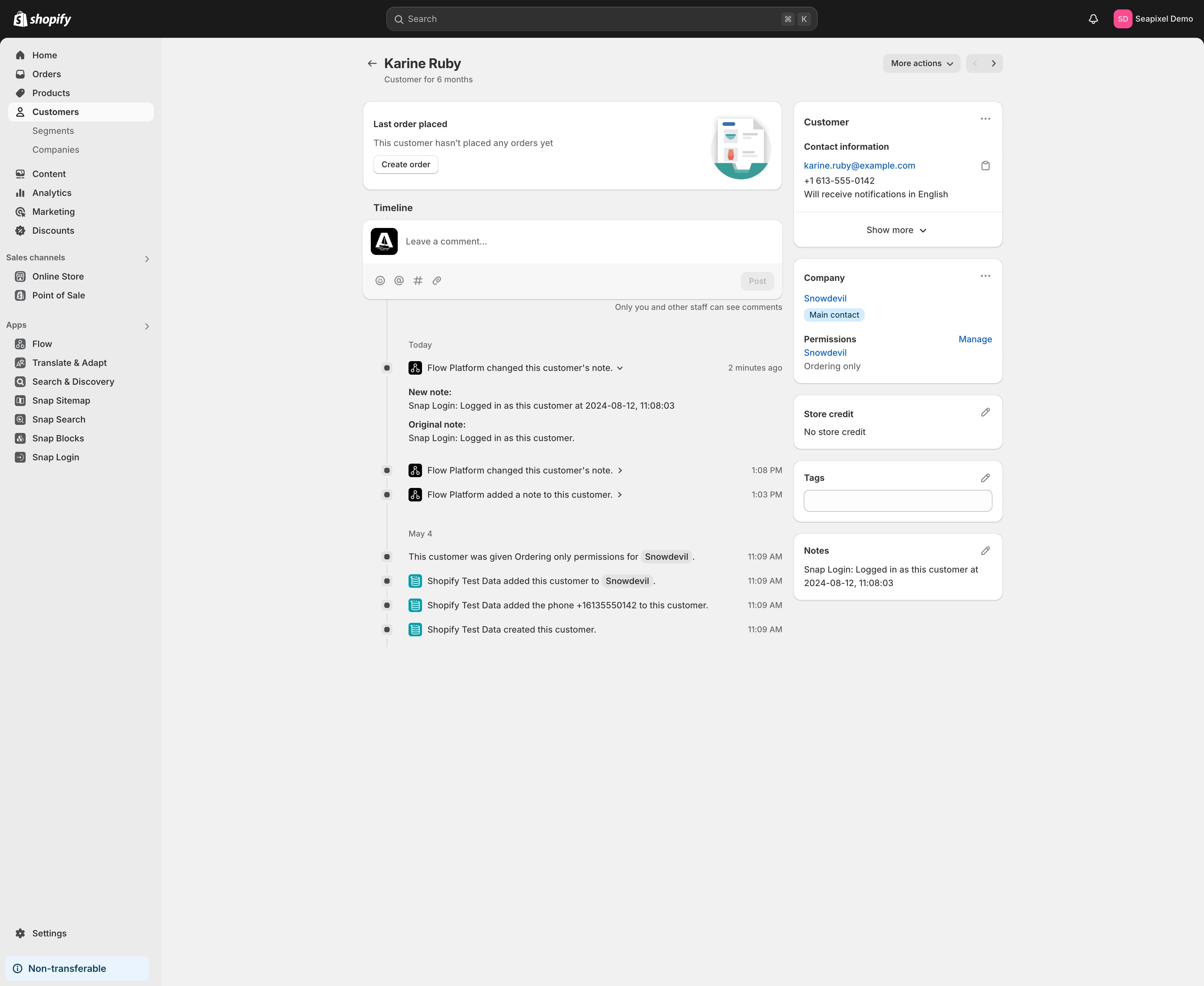
The custom note will be displayed on the customer account timeline.